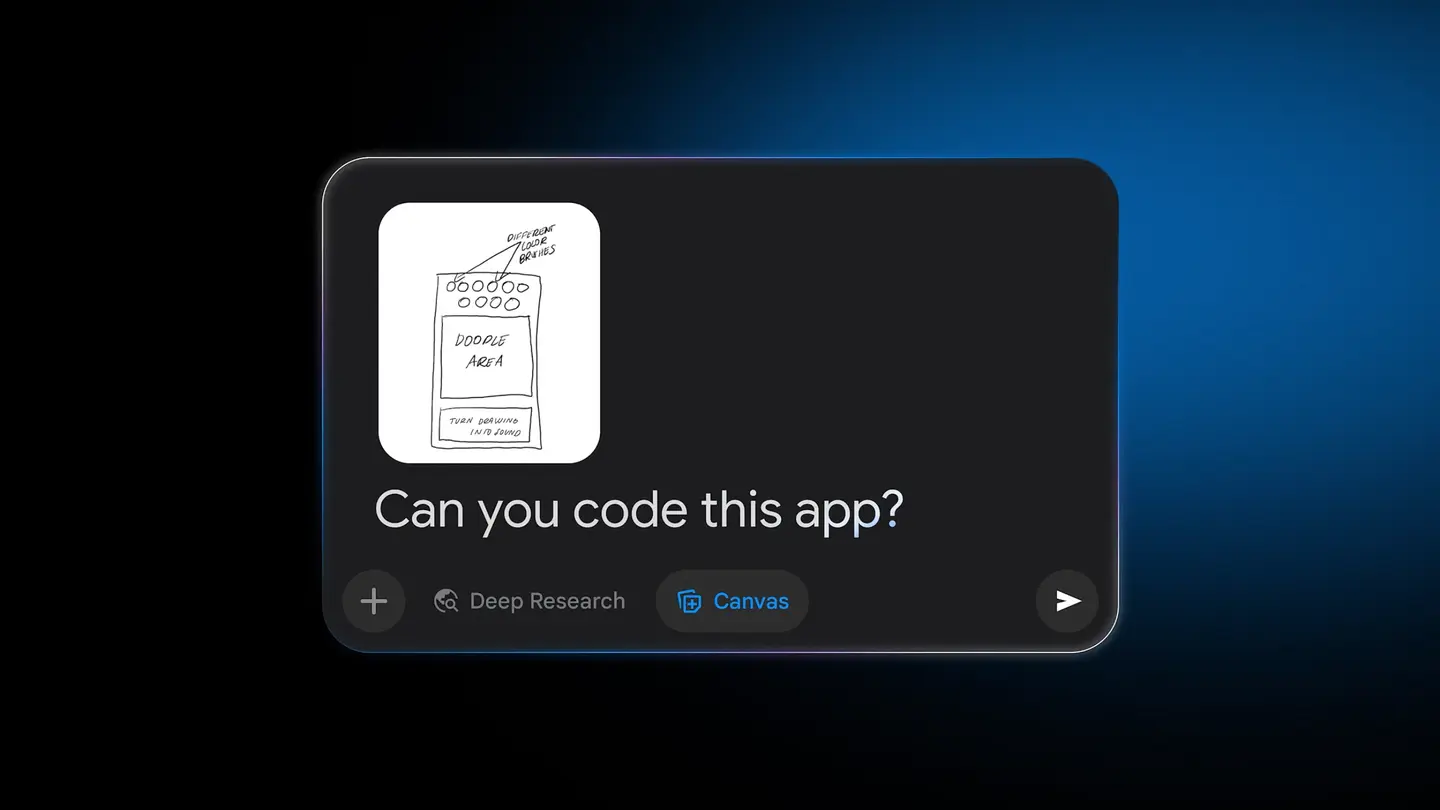
Gemini can now turn a photo of a hand drawn sketch into a working app: upload the picture, pick the Canvas tool and ask “Can you code this app?” Google described the steps in a post on its Keyword blog on November 5.
The examples Google gives are an app mock up, a habit tracker and a game board. Gemini reads the drawing, writes the code and shows the result in a preview window, where it can change colors, fonts or features on request.
How do you turn a sketch into an app with Gemini?
Upload a photo of your sketch, select Canvas and type the request. Google lists four steps in its post.
- Upload a photo of the sketch to Gemini.
- Select the Canvas tool and ask Gemini to code the app.
- Gemini reads the visual and writes the code.
- Test the result in the preview window and ask for changes to colors, fonts or features.
Google’s help page says you add the image with the Add files option below the text box, together with your prompt.
What can you adjust after the first version?
Gemini can change colors, fonts or features in real time, according to Google’s post. In practice that means you can keep talking to the same preview instead of starting over each time.
Google’s help page adds two tools for apps. A “Show console” button at the top right of the Canvas panel displays errors and logs from the preview, and a Code view lets you edit the code directly. Python code can be exported to Colab from the top of the Canvas panel.
Can you share the app you build?
Yes, through the Share & export menu. You copy the g.co/gemini/share link or pick a supported social platform. Google’s help page says to review the app information first, and warns that anyone with the public link can view and edit data associated with the app.
Shared links open only at gemini.google.com, not in the Gemini mobile app, according to the same page.
Who can use it, and what does it cost?
Google’s post does not list a price or a separate plan for this feature. Google’s Canvas overview page says Canvas is available to all Gemini users, in all languages and countries where the Gemini app is available.
It also says Google AI Pro and Google AI Ultra subscribers get Canvas with Gemini 3 and a context window of 1 million tokens for more complex projects. No subscription prices are given in the sources we read, so check Google’s plan pages for the figure in your currency.
You must be signed in to Gemini Apps. To add Gemini powered features to an app, the help page says you must also be 18 or over.
Who it suits
Beginners. If you can draw a screen and describe what each button should do, this lowers the first hurdle of building something that runs. A phone photo of a notebook page is enough input.
Designers and product people. A rough mock up becomes something clickable, which helps when you want feedback before anyone writes production code. Treat the result as a prototype and check the generated code before relying on it.
Teachers and hobbyists. Habit trackers and game boards are the kind of small tools Google highlights, and they are quick to test in the preview.
Who should wait. If you need a polished app for the public, or you handle sensitive data, be careful: shared apps can be edited by anyone with the link, according to Google’s help page.
What is still unknown?
Google does not say how complex a sketch can be, which image types or sizes are accepted, or how accurate the result is for busy drawings. The help page lists no file size or quota limits either. Whether every plan gets the same limits is not stated in the sources.
What to do next
Draw a single screen with labels, upload it in Gemini, choose Canvas and use Google’s own prompt. Then read the Gemini Apps Help page on Canvas to learn about the console, the Code view and sharing before you send the link to anyone.